
A TestFlight public link makes joining an iOS beta easy. The value comes from choosing who can join and giving them something specific to test.
A TestFlight public link lets people join an external beta without the developer collecting their email addresses first. It is useful for a waitlist, a community, or a targeted recruitment campaign, but the link only solves enrollment. A useful iOS beta still needs a compatible build, the right testers, a clear task, and a way to act on feedback.
This guide shows how to create a TestFlight public link in App Store Connect, control who can join, share it responsibly, and diagnose the common reasons an invitation does not work.
What a TestFlight public link does
TestFlight distributes pre release Apple app builds to internal and external testers. A public invitation link belongs to an external testing group. A person opens the link, accepts the invitation, installs the TestFlight app if needed, and installs the beta build that the group can access.
The link is different from an App Store product page and from an email invitation. Apple says a tester who joins through a public link appears as Anonymous in App Store Connect, and the developer does not see that person's name or email address through the link alone. Device, build, session, crash, and feedback data may still be available under Apple's tester information reference.
For the broader distribution strategy, read the iOS app beta testing guide. This article focuses on the public invitation path.
Check the prerequisites before creating the link
First create the app record and upload a TestFlight eligible build. Provide a beta description, the areas to test, a feedback email, and any review information the build needs. The build must be compatible with the devices and OS versions you intend to recruit.
Apple's external tester instructions say that an internal group must exist before you create an external group. Add the build to the external group and submit it for TestFlight beta review when App Store Connect requests it. A build uploaded as TestFlight Internal Only cannot be assigned to an external group.
Apple says the first build submitted for external testing requires a full beta review. Later builds for the same version might not. Do not publish a recruitment link until the group's build can actually be installed.
The required App Store Connect role for this workflow is Account Holder, Admin, or App Manager. If the option is missing, verify account permissions before trying a different browser.
Create a TestFlight public link in App Store Connect
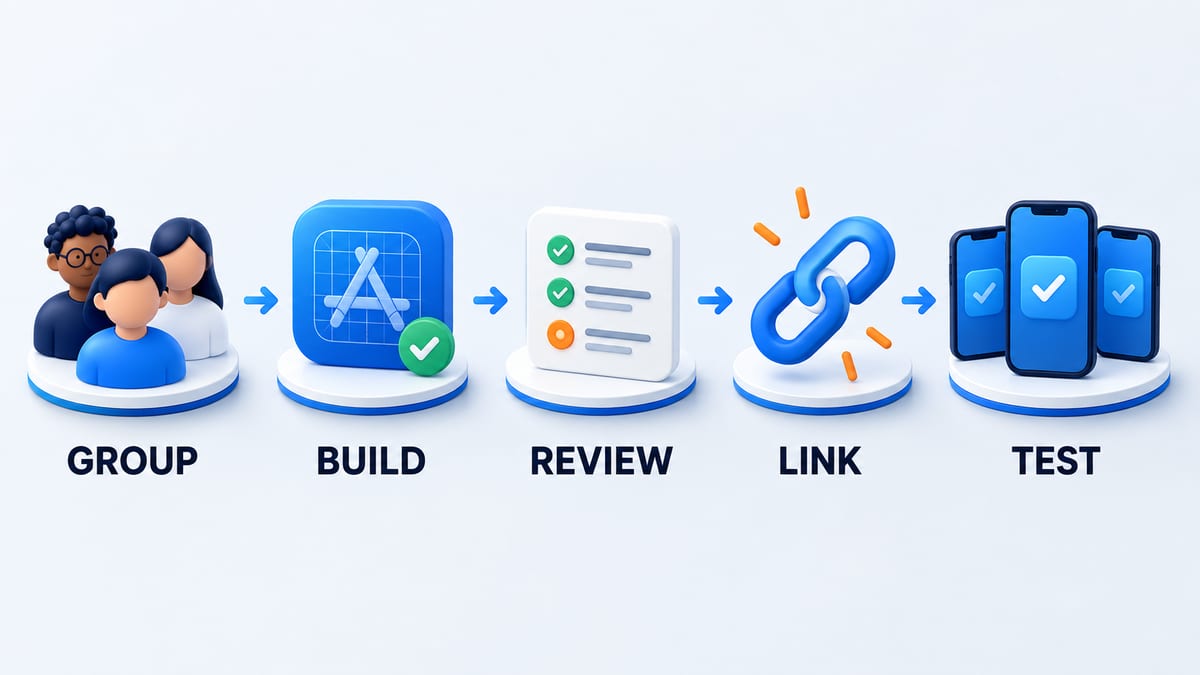
The current Apple workflow is short once the external group and build are ready.
- Open the app in App Store Connect and select the TestFlight tab.
- Under External Testing, select the group that should receive the testers.
- Open the Testers tab and select Create Public Link.
- Choose Open to Anyone or Filter by Criteria.
- Optionally set a tester limit for this public link.
- Confirm, copy the link, and open it on an eligible device to verify the invitation.
When you choose Filter by Criteria, Apple asks you to add at least one criterion and check that the builds in the group remain compatible. The exact controls can change, so use the current Apple instructions as the source of truth for the interface.
Set criteria and a tester limit before sharing
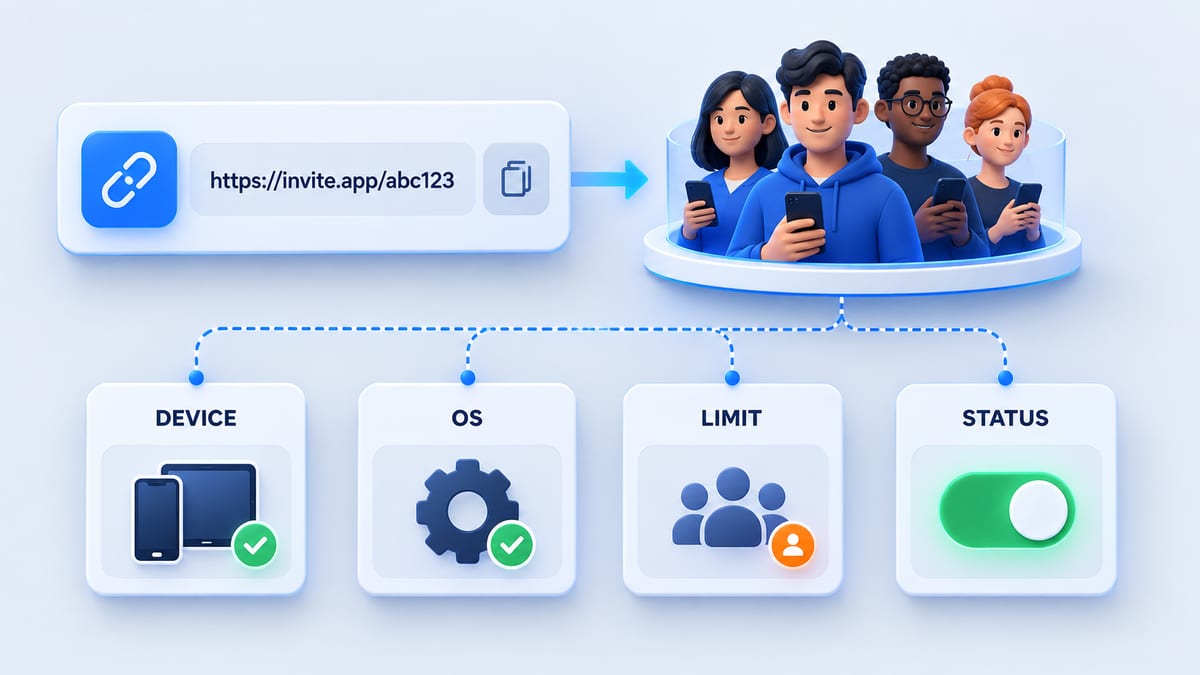
Open to Anyone is appropriate when the build supports a broad audience and you are ready to triage that volume. Filter by Criteria is better when the question depends on a device family or OS version. A restrictive rule can also make an otherwise valid invitation unusable for the people you recruited.
Apple lets you set an optional public link tester limit from 1 to 10,000 for the group. The app can have up to 10,000 external testers overall. Treat the limit as capacity control, then budget time to review the feedback those people submit. It is easy to recruit faster than a small team can respond.
Use separate external groups when you need different builds, missions, or cohorts. Label each group by purpose in App Store Connect and keep a simple record of where its link was shared. That makes a problem report easier to trace than a single untracked link posted everywhere.
The developer can later change criteria or the limit, make the link available to everyone, or disable it by choosing Manage next to Public Link. Apple's group insight cards can flag an incompatible build, a full link, or a build near expiry.
Share the invitation with a useful testing mission
A public link is easy to forward. Put the audience, supported device, expected time, and feedback route beside it. People should know whether they are joining a short exploratory round or a structured release test.
One invitation can be as simple as this.
Help test our iPhone onboarding flow this week. Use the public TestFlight link on a supported iPhone, create a test account, complete the first task, and tell us where you hesitate or get blocked. Do not use real payment details. Send a screenshot and device model if you find a problem.
Do not paste a private test account password into a public post. If the build needs credentials, deliver them through a controlled channel or provide safe self service account creation. For a beta with sensitive features, invite a screened group by email instead.
The guide to finding beta testers covers how to recruit for device and audience fit. BetaRoast can turn the public link into a round with a clear mission and a place for findings.
Measure enrollment and feedback quality
The number of link views is an early signal. It does not show that testers accepted, installed, completed a task, or found an issue. Apple exposes public link performance and tester information in App Store Connect, including invitation status, sessions, crashes, and feedback where available. Compare those signals with your own mission completion data.
Watch the funnel from link opened to invitation accepted, build installed, first task completed, and issue retested. A gap between acceptance and installation may point to device eligibility, build availability, or confusing instructions. A gap after installation may point to onboarding or a weak task brief.
Ask for an actionable mobile app bug report when behavior fails. For a usability question, ask what the tester expected, what they tried, and where they became uncertain.
Fix a TestFlight public link that is not working
Check the failure in the same order a new tester experiences it.
- Confirm the external group has a compatible build available for testing.
- Check whether the first external build is still in beta review or was rejected.
- Verify that the link is enabled and has not reached its tester limit.
- Compare the tester's device and OS with the group's recruitment criteria and build requirements.
- Confirm the tester opened the correct group's current link and installed TestFlight.
- Check whether the build has expired. Apple says TestFlight builds remain testable for up to 90 days.
Do not guess that every failed invitation is a review problem. Apple's group insight cards can identify a full link, no compatible build, or approaching expiry. If the person joined successfully but cannot install, record the exact screen, device, OS version, and time before changing the group.
Choose a public link or an email invitation
Use a public link when people are discovering the beta through a community, newsletter, waitlist, or landing page. It reduces the need to collect email addresses just to invite them. Device and OS criteria can help narrow the pool.
Use email invitations when you know the testers, need a small controlled cohort, or must track a specific person's participation. Apple supports both methods in an external group, so you can use a public link for broad discovery and email invitations for specialists.
Neither invitation method guarantees useful feedback. The mission, onboarding, follow up, and retest loop determine whether testers contribute enough evidence for a release decision.
TestFlight public link checklist
- Create an internal group and an external testing group.
- Add an eligible build to the external group.
- Complete the beta review that App Store Connect requires.
- Confirm the build supports the devices and OS versions you want.
- Create the public link and choose open enrollment or criteria.
- Set a limit your team can support.
- Open the invitation on an eligible device.
- Share a mission, deadline, feedback route, and safe data instructions.
- Track acceptance, installation, task completion, and findings.
- Retest important fixes and disable the link when recruitment closes.
Frequently asked questions
How do I get a TestFlight public link?
In App Store Connect, open the app's TestFlight tab, select an external testing group with an available build, open Testers, and choose Create Public Link. Complete the required external beta review before inviting people to install the build.
Can anyone join a TestFlight public link?
Only if the link is enabled, has room, and is set to Open to Anyone. Device or OS criteria and build compatibility can restrict who is eligible.
Can I limit or disable a public link?
Yes. Apple provides an optional tester limit and a Manage control that can edit criteria, change the limit, or disable the public link.
Can I see the email addresses of public link testers?
Apple says their names and email addresses are not visible to the developer through public link enrollment. They appear as Anonymous in App Store Connect.
Why does a tester see that the beta is unavailable?
Check external group membership, build availability, beta review status, device and OS criteria, tester capacity, the link's enabled state, and build expiry. Ask for the exact message and device details before changing settings.
Put the link to work
Create a BetaRoast iOS testing round with the TestFlight link, eligible devices, a short mission, and a feedback deadline. The link gets testers in. The round turns their time into evidence your team can use.
A TestFlight public link is an invitation route for external testers, not a replacement for an approved beta build or a testing plan. Create the external group, add a compatible build, complete the required beta review, and then set the link's criteria and capacity before sharing it. Confirm the experience on an eligible device, watch acceptance and installation rather than link clicks alone, and give every tester a short mission with a safe feedback channel. When a link appears broken, inspect the build status, group, device rules, tester limit, and link state in App Store Connect. BetaRoast can help recruit the right iOS testers and organize the work that starts after they join.