
Firebase accepted the message, but did Android display it and open the right screen?
Android push notification testing should prove four outcomes. The correct installation is targeted, the message reaches its handler, Android presents the expected notification, and tapping it reaches the correct destination. A successful Firebase Cloud Messaging request proves only part of that journey.
Build a repeatable notification test workflow
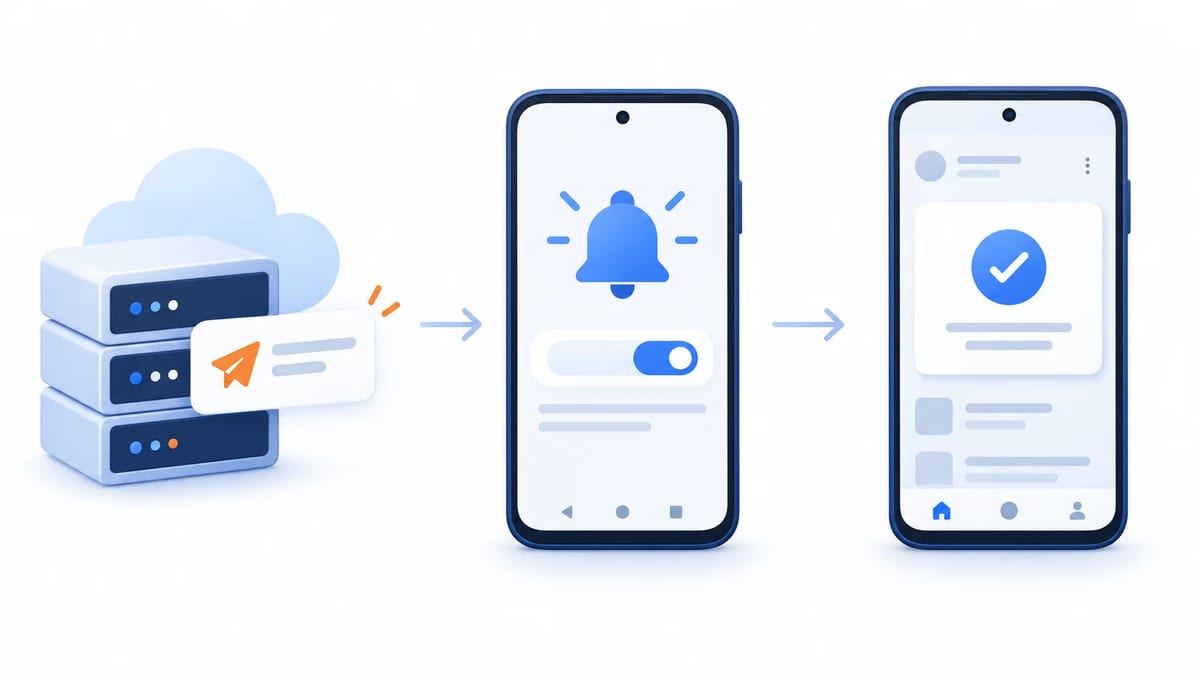
Start with a synthetic order update for a test account. Give each message a unique correlation ID and define its expected screen, channel, and display behavior. Change one device condition at a time.
- Record the app version, target SDK, Android version, device model, and Firebase project.
- Establish an online baseline with notifications allowed and the intended channel enabled.
- Record server acceptance, observed receipt where available, notification appearance, and tap destination independently.
- Repeat with a changed permission, channel, lifecycle, or network state, then restore the baseline.
Include Android 13 or later for runtime permission coverage and an older supported version where relevant. Use your Android app beta testing plan for audience and device coverage; keep this mission specifically about messaging.
Verify Firebase registration and the current test target
Check the installed build's Firebase configuration against the official Android Firebase setup, including application ID, configuration file, Google services plugin, and messaging dependency. A staging sender targeting a production installation is an environment mismatch.
For an existing token-based integration, retrieve the target with FirebaseMessaging.getInstance().getToken(), handle onNewToken, and synchronize changes with your server. Reinstallation, restored data, or cleared data can change registration. Check account ownership after logout and switching accounts.
The current FCM Android setup guide documents Firebase Installation ID registration and marks tokens deprecated, yet its Console test instructions still specify a token field. Match your pinned SDK to the sender; never paste an arbitrary FID into that field.
Run this single-device smoke test before the wider matrix.
- Open the installed app, allow notifications, check its channel, and obtain the current supported registration target. Press Home.
- In that project's Firebase Console, open Messaging, create a notification campaign, and compose uniquely labeled test text.
- Choose Send test message. If the dialog requests an FCM registration token, enter the current token from the token-based SDK, then choose Test.
- Observe the drawer notification and tap it. For a FID-only integration, use the documented compatible sender instead of guessing what the Console accepts.
For controlled payload comparisons, use the Admin SDK or HTTP v1 sender in a trusted environment. Keep sending credentials off devices and out of reports.
Test push notifications on emulators and real devices
Use an Android emulator image with Google APIs and compatible Google Play services for FCM testing. A plain AOSP image is not an equivalent transport environment. Emulators make permission and version checks repeatable; real devices expose manufacturer battery restrictions, lock-screen behavior, sound, and network transitions. Repeat release-critical cases on supported physical devices.
Separate a live FCM test from deterministic local notification tests. In instrumentation, inject a synthetic event through a test-only entry point into your app's notification builder. This checks display and actions without claiming to verify Firebase transport. Keep that entry point out of production builds.
Use UI Automator for system UI interactions. Reset permission and channel state, identify the uniquely labeled notification, wait with a bounded timeout, and assert its tap destination. Preserve timestamps on timeout rather than retrying until success. A small live-send suite verifies transport separately; fixed sleeps and broad text matches can hide failures.
Compare notification and data payloads deliberately
Firebase's Android receive guide describes different paths for foreground and background delivery. Notification-only, data-only, and combined payloads are distinct test cases, even when they describe the same event.
- In the foreground, all three reach
onMessageReceived. Verify your app's chosen behavior, whether that means updating the screen, showing an in-app banner, or posting a notification. - In the background, notification payloads use the system notification path, subject to display settings. A missing service callback is not sufficient evidence of failed delivery.
- Background data-only payloads use
onMessageReceivedwhen delivered. They do not create a tray notification automatically. - A combined background payload uses the notification path, with data in the launch intent extras after the user taps.
Use distinct visible labels for each case. Otherwise, a tester may mistake the previous message for the current result. Keep callback work short and schedule longer processing with WorkManager; also check for duplicate alerts when application code and automatic notification handling overlap.
Exercise granted denied and dismissed permission states
On Android 13 and later, ordinary notifications require POST_NOTIFICATIONS. The Android permission documentation distinguishes allowing, denying, and dismissing the prompt. Dismissal leaves permission unchanged; it is not consent.
- Grant permission, send a fresh event, and check display.
- Deny permission, repeat, and verify that the app remains usable without an alert.
- Dismiss the prompt from a fresh state and confirm that no opt-in is recorded.
- Enable notifications in Settings and repeat without reinstalling.
On a dedicated Android 13+ test installation, reset the prompt baseline with adb shell pm revoke PACKAGE_NAME android.permission.POST_NOTIFICATIONS, followed by adb shell pm clear-permission-flags PACKAGE_NAME android.permission.POST_NOTIFICATIONS user-set and adb shell pm clear-permission-flags PACKAGE_NAME android.permission.POST_NOTIFICATIONS user-fixed. Replace PACKAGE_NAME with the test package.
Record target SDK. Apps targeting API 32 or lower have different prompt timing and denial behavior. Test upgrade pre-grants separately from fresh installation. Permission governs notification display, so observe data handling independently rather than inferring it from the drawer.
Check the exact notification channel
An app can have permission while one category remains blocked. Android 8.0 and later use notification channels; consult channel management and inspect the channel actually used by the message, not just the app-wide toggle.
Block the order-update channel while leaving another category enabled. Send one event to each and confirm that only the allowed category appears. Then lower importance and distinguish a quiet drawer notification from a missing notification. Record sound, vibration, lock-screen visibility, and Do Not Disturb separately.
Use getNotificationChannel(channelId) and getImportance() to inspect state. IMPORTANCE_NONE indicates a blocked channel. Recreating the same channel does not reset user preferences or let the app raise its importance. Offer access to channel settings instead of bypassing the choice with another channel ID.
Separate background execution from force stop
Pressing Home, removing a recent task, and using Force stop are different experiments. Android can reclaim an app process under its process lifecycle rules. That does not itself establish the explicit stopped state. Test notification handling with no activity or process alive, and label precisely how you reached that condition.
On a dedicated device, background the app and use adb shell am kill PACKAGE_NAME to request termination of a killable background process. Confirm termination before labeling the case. Device-specific task removal and battery restrictions deserve separate observations.
For the explicit stopped-state case, use Settings > Force stop or adb shell am force-stop PACKAGE_NAME. Firebase's receiving guidance states that Android apps force-quit from Settings must be reopened before messaging works again. Reopen manually and send a new event to verify recovery. Do not require replay of every message sent while stopped.
Test reconnects expiry and delivery priority
Disconnect the test device, send an event with a deliberate lifetime, and reconnect before expiry. Repeat while remaining offline beyond expiry. Firebase's message lifespan documentation explains that server acceptance is not device delivery and that ttl limits storage. A zero lifetime discards messages that cannot be delivered immediately.
For example, test an order update with android.ttl set to 120s, reconnect after thirty seconds, then repeat after three minutes. Verify current order state on opening the app even if no alert survives. These are designed test expectations, not latency guarantees.
Also test a burst of updates. Collapsible message behavior can replace pending messages, so do not assume every intermediate update will appear. Make reconciliation independent of notification count.
Finally, compare normal and high priority under idle conditions using Firebase's priority guidance. Normal delivery can wait during Doze. High priority is intended for urgent visible events, remains subject to platform behavior, and can be deprioritized when it repeatedly produces no visible notification.
Validate every notification tap route
A delivered alert is incomplete if it opens an unrelated screen. Send two synthetic orders, tap their notifications in reverse order, and confirm that each opens its own record. This catches reused intent identity or stale extras that a single-message test misses.
Exercise a fresh launch, an already running activity, a signed-out account, a deleted record, and an offline destination. Where activity reuse applies, check both initial intent handling and onNewIntent. After authentication, resume the intended route only after checking account access.
Android's notification navigation guide covers PendingIntent and appropriate back stacks. Verify Back navigation as well as arrival. If the route uses a web URL, add the verification and fallback cases from the Android App Links testing guide.
If your app builds notifications with actions or direct reply, check each outcome separately from the body tap. Mark-as-read should affect only the intended record. Reply to two conversations in reverse order and verify the receiver's RemoteInput text, correct recipient, and updated notification. Test offline failure and retry without duplicate submission, and ensure the UI never claims a reply was sent before the application has confirmed success.
Diagnose failures with privacy safe evidence
Work from the earliest missing checkpoint. A sender error suggests registration or authentication trouble. Accepted messages with no observable receipt need lifecycle, network, expiry, and payload checks. Receipt without display points toward permission, channel state, or posting logic. Correct display with a wrong destination points toward intent handling and authorization.
Record correlation ID, timestamps with timezone, build, device, payload category, app state, permission state, channel ID, expected result, and actual result. Use synthetic notification text. Redact registration targets, authorization headers, personal messages, account identifiers, and unrelated notifications from screenshots and logs. A developer can retain restricted diagnostic details without publishing them in a tester report.
Use the mobile bug report guide to make the case reproducible. When fixes pass locally, start a focused BetaRoast round for the device combinations still missing from your evidence.
Frequently asked questions
Does a successful FCM send mean the notification appeared?
No. Acceptance, delivery, display, and opening are separate checkpoints. Record the actual device outcome before declaring success.
Why does the foreground app receive a message without an alert?
Foreground messages reach the app handler. Your implementation decides whether to show an in-app update or post a notification.
Can a notification arrive after Android kills the process?
Process reclamation and force stop are different states. Test the actual lifecycle condition and payload path; reopening is required after explicit force stop.
Why is one notification category missing despite permission being granted?
The channel used by that category may be blocked or quiet. Inspect its settings alongside the app-wide permission.
Should denied permission stop all background data tests?
No. Separate notification display from data processing. Verify the received event and the permitted product behavior independently.
A dependable push test traces registration, delivery, display, and navigation separately. Verify the current installation target, exercise each payload type, and record permission and channel settings before judging the result. Keep background execution separate from force stop, test reconnection against message expiry, and confirm that notification taps respect account access. Use synthetic content and redacted evidence so a failed case can be reproduced without exposing a tester's private information.