
A link that opens the app on one developer phone can still send every beta tester to the browser.
Android App Links testing is more than tapping a URL and watching an activity open. A developer build may appear to work because the phone remembers a manual link preference, while a Play-distributed beta build uses a different signing certificate and fails automatic verification.
This guide shows how to test the website association, inspect verification on a device, exercise real user journeys, and collect evidence that makes a failed link reproducible. It focuses on verified HTTPS App Links, not a general introduction to Android beta tracks.
What Android App Links actually verify
An Android App Link is an HTTPS link associated with an app and a website. The app declares matching URLs in an intent filter with android:autoVerify="true". The website serves a Digital Asset Links statement at https://your-domain/.well-known/assetlinks.json. Android compares its package name and signing certificate fingerprint with the installed app before treating the website as verified.
Verification and navigation are different checks. A verified domain can still open the wrong screen because the app parses a path incorrectly. An unverified domain may appear to work on a tester's phone because that person manually allowed the app to open supported links. Record both the system state and the actual destination.
Google's App Links overview explains the association model and how dynamic rules extend it.
Build a link inventory before the test
List the hosts and URLs the release must support. Include the bare domain and www subdomain separately if both appear in the manifest. Add a representative URL for each destination, such as a product, invitation, password reset, order, or shared document. Record the expected behavior for signed-in and signed-out users.
The official App Links test guide recommends checking the manifest's HTTP or HTTPS scheme, host, VIEW action, and BROWSABLE category. Each named host needs a valid association file. Do not assume a file on the apex domain covers its subdomains.
For every URL, specify what should happen with the app installed, with the app uninstalled, and after the user returns from authentication. This becomes the test oracle. Without it, a tester can say that the app opened but cannot tell whether it opened correctly.
Verify the domain association before testing navigation
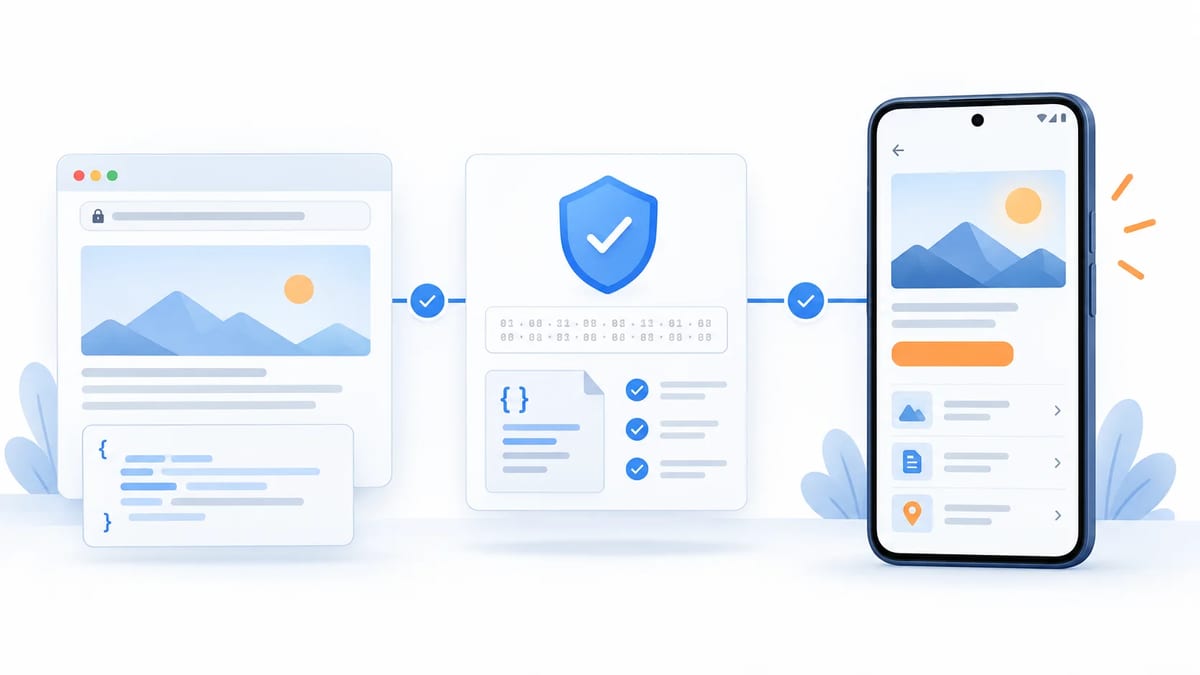
Fetch https://your-domain/.well-known/assetlinks.json from outside your development network. Check that it is reachable over HTTPS without an unexpected redirect, that its JSON is valid, and that it contains the intended package name and delegate_permission/common.handle_all_urls relation.
The certificate fingerprint must match the build testers actually install. A locally signed debug APK and a Play-distributed build may not use the same certificate. Check the Play App Signing certificate when the beta comes from Google Play, rather than copying a fingerprint from a local debug keystore.
Use Google's Digital Asset Links statement tester or the Digital Asset Links API described in its test documentation to validate each host. The server response and device state are both useful evidence. A valid JSON file alone does not prove Android verified the installed package.
Inspect verification on a clean device
Install the exact candidate build and wait for Android to perform domain verification. Google recommends allowing at least twenty seconds after installation before reading link-handling state. Then inspect the package with adb shell pm get-app-links com.example.app.
If you changed the website file, ask the device to fetch the association again with adb shell pm verify-app-links --re-verify com.example.app, then run adb shell pm get-app-links com.example.app once more.
Replace com.example.app with the real package name. Android also exposes link-handling policies with adb shell dumpsys package domain-preferred-apps. Interpret a device's result carefully because user preferences can override the apparent behavior. Google's troubleshooting guide documents the re-verification command and common failure causes.
Keep the package name, build number, Android version, host, URL, verification result, and time of the test together. A screenshot of an open app without those details cannot identify a signing or host mismatch.
Test the user journey rather than only the intent
Open a real HTTPS link from the places your audience uses, such as email, chat, a browser page, or a QR code. Confirm that the app lands on the intended content and that Back returns to a sensible location. Some sending apps handle URLs differently, so a command-line launch is useful for diagnosis but does not replace a human tap.
Run at least these states on a real device
- Fresh install with no prior link preference
- App already open and app cold-started
- Signed in, signed out, and session expired
- Destination deleted, private, or unavailable
- App absent, so the web page must remain useful
- Weak or interrupted network
If your app redirects to login, preserve the original destination and return to it after authentication. For sensitive routes such as password resets or invitations, make sure a stale token produces a safe explanation rather than a blank screen or repeated redirect.
Diagnose a link that opens the browser
Start with the failed host, not the app screen. Check whether assetlinks.json is accessible at the exact host, whether the manifest declares that host, and whether the fingerprint matches the release signing identity. Google also flags server-side redirects as a verification failure cause in its App Links troubleshooting reference.
Next inspect pm get-app-links and the device's Open by default settings. A tester may have disabled supported links or associated the domain with another app. Reproduce on a clean profile before changing the manifest.
If the domain is verified but the wrong screen opens, inspect the URL parser, route arguments, encoded characters, trailing slashes, and login continuation. Distinguish a platform association failure from an application routing failure so the right owner can fix it.
For Android 17 and later, Google's current App Links test guide documents adb shell am start --debug-link, which prints a breakdown of matching intent filters, verification state, and dynamic rules. Do not make this newer diagnostic a prerequisite for testing older devices.
Test dynamic rules only where supported
Dynamic App Links can refine URL handling with rules in assetlinks.json on supported Android versions. A new server-side rule cannot expand beyond the scope declared by the app's manifest. Test a URL that should open, one that should be excluded, and a boundary path that looks similar.
After changing a rule, force re-verification and retest on a supported device. Keep a static fallback scenario for older Android versions. The Android App Links overview describes the supported behavior and periodic rule refresh conditions.
Android App Links release checklist
- Inventory every production host and critical URL path.
- Confirm manifest intent filters and
android:autoVerify. - Validate association files on each exact host over HTTPS.
- Match the package name and production or Play signing fingerprint.
- Inspect device verification state for the distributed beta build.
- Tap links from real sending apps on fresh devices.
- Test sign-in recovery, missing content, app absence, and offline behavior.
- Record failures with URL, host, build, OS, device state, and evidence.
- Retest the same path after a fix.
This is a focused complement to a broader Android closed testing checklist. Give real testers a small set of links and expected destinations rather than asking them to browse at random.
Frequently asked questions
Why do App Links work in debug but fail in a Play build?
The installed builds may be signed with different certificates. Check the fingerprint in assetlinks.json against the certificate used for the Play-distributed app and inspect verification on that exact build.
Does a valid assetlinks.json file prove the link works?
No. It establishes part of the website association. The installed app still needs the matching manifest and signing identity, and its routing code must send each URL to the right screen.
Can an App Link appear to work when verification failed?
Yes. A device user can manually allow an app to open supported links. That is why a clean-device test and a verification-state check matter.
Should every URL be tested with ADB?
ADB helps isolate platform behavior. Also tap representative links from the apps and surfaces your users actually use, because end-to-end behavior includes the sender and the in-app journey.
Run a focused link test with real users
Create a BetaRoast testing round with the candidate build, supported devices, a link list, expected destinations, and a short evidence template. When a link fails, you will know which host, build, account state, and device produced it.
Android App Links testing has two separate jobs. First confirm that Android trusts the association between the website and the correctly signed app. Then confirm that every important URL reaches the intended screen and behaves well when the app is missing, the user is signed out, or the network fails. Validate the manifest, assetlinks.json, release signing fingerprint, and each host; inspect device verification state; and run a small real-device matrix before release. A verified domain is the starting point, not proof that the user journey works.