
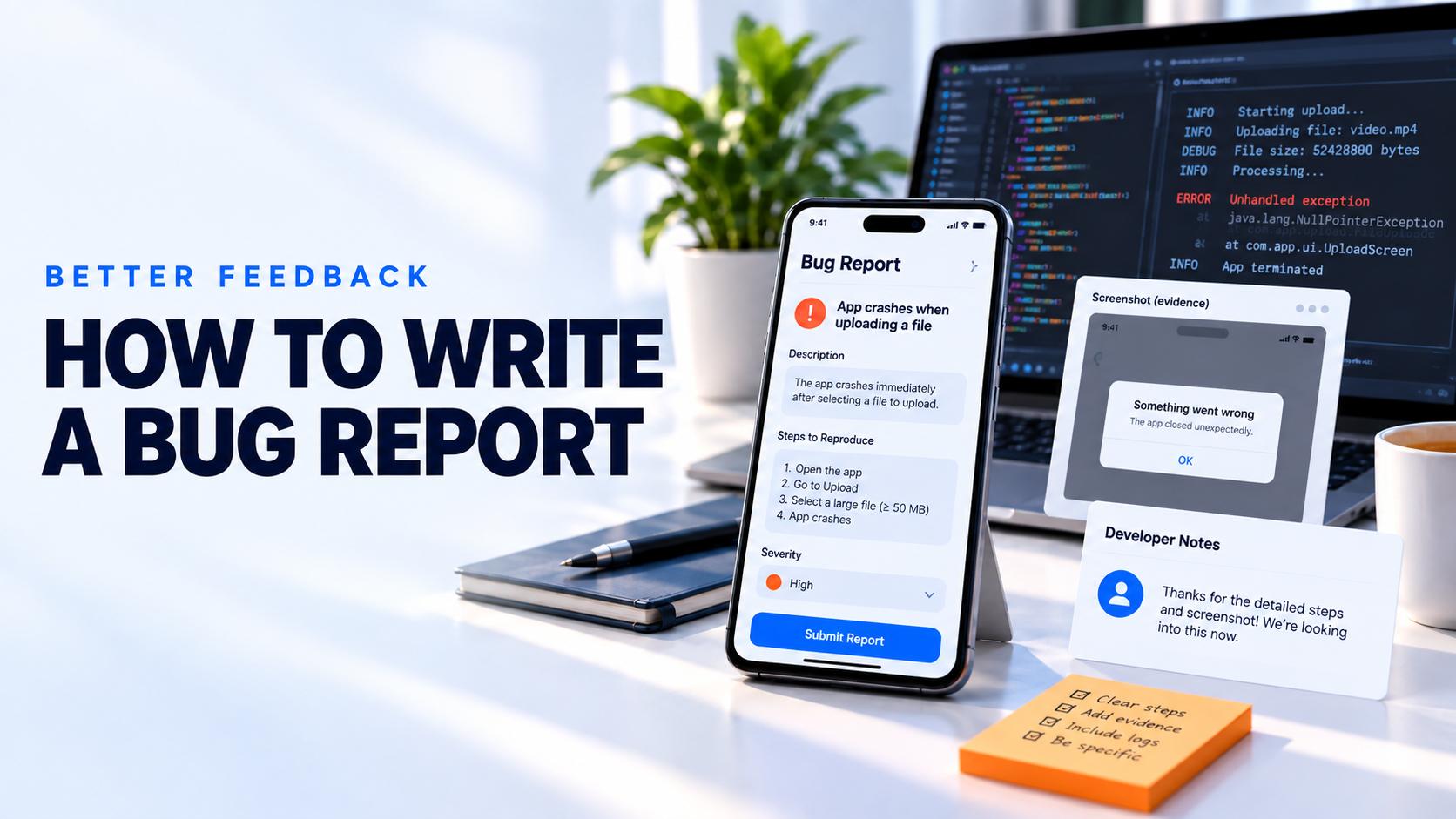
A useful bug report lets another person reproduce the failure without guessing what the tester saw, touched, or expected.
Knowing how to write a bug report is one of the highest leverage skills in mobile app testing. A vague comment tells the team that something felt wrong. A good bug report tells engineering where the problem happened, how to reproduce it, what should have happened, what actually happened, and how much it matters.
This guide provides a practical structure for Android and iOS reports, examples, evidence rules, severity guidance, and a template that testers can reuse in every beta round.
What is a bug report?
A bug report is a structured record of behavior that differs from the expected product or technical result. It connects the tester's observation with the information a developer needs to reproduce, debug, fix, and retest the defect.
The report should describe one problem. If a tester finds a crash, a copy error, and a missing notification, those are usually three reports because they can have different causes, owners, and release decisions.
A long report is not automatically a detailed report. The best report contains the smallest set of precise facts that removes uncertainty.
The anatomy of a good mobile app bug report
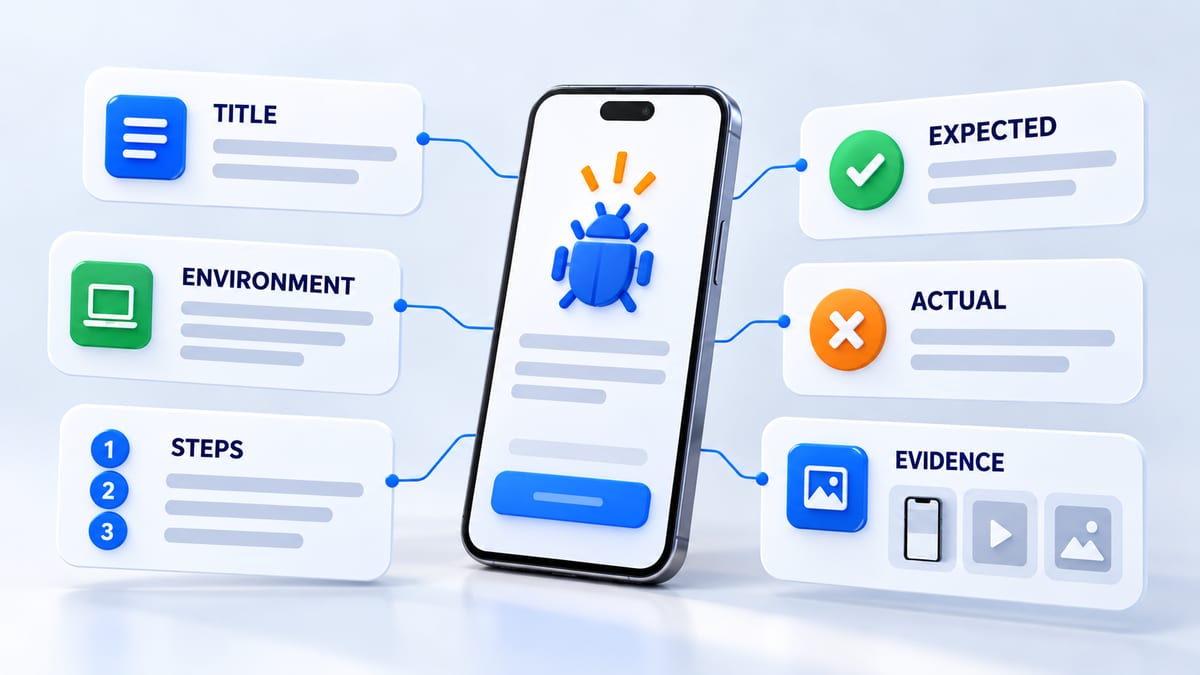
Every useful report contains six core elements.
- A concise title that describes the action and failure
- The app build, device, operating system, account state, and network context
- Numbered steps to reproduce the issue
- The expected result
- The actual result and frequency
- Safe evidence such as a screenshot, recording, timestamp, crash reference, or log
Add severity and user impact when the testing workflow uses them. Include any workaround because it changes the release risk and helps support teams respond to affected users.
Write a title that identifies one observable failure
Use the form action plus condition plus result. A strong title can stand alone in a triage list.
Weak title
Upload is broken
Stronger title
App closes when a user uploads a video larger than 50 MB on cellular data
Avoid emotional language, assumed root causes, and titles that describe multiple issues. Unless the tester has verified the code path, report the observed behavior instead of claiming which component caused it.
Record the exact environment
Mobile defects are often conditional. The same build can work on one device and fail on another because of operating system behavior, memory, permissions, locale, connectivity, or installation history.
Record the following details when relevant.
- App version and build number
- Device manufacturer and exact model
- Android, iOS, or iPadOS version
- Fresh install or upgrade from a previous build
- Signed in or signed out state and test account type
- Wi Fi, cellular, slow network, or offline state
- Language, region, timezone, and accessibility settings
- Permission state for camera, photos, location, microphone, or notifications
- Battery, free storage, orientation, and background state when they may affect the issue
Do not write latest version. Copy the exact number shown on the device or app information screen. The team may be testing several builds at once.
Write minimal steps to reproduce
Start from a known state and list one action per step. Remove actions that do not affect the outcome. A developer should be able to follow the steps without knowing what the tester meant.
Good steps identify the screen, control, input, and timing.
- Install build 142 and sign in with a new test account.
- Open Upload and choose a video larger than 50 MB.
- Switch from Wi Fi to cellular before progress reaches 20 percent.
- Return to the upload screen.
- Tap Resume once.
Repeat the sequence before submitting. If it fails every time, write five out of five attempts. If it is intermittent, record the observed rate and any pattern. Never invent a clean reproduction path when the issue happened only once. Say that it has not reproduced and preserve the timestamp and evidence.
Separate expected and actual results
The expected result should describe the product contract, design, requirement, or consistent platform behavior. The actual result should describe only what happened.
Expected result
The upload pauses when the network changes and resumes from the saved progress.
Actual result
The progress resets to zero, the screen freezes for about three seconds, and the app closes.
Avoid statements such as it does not work. Name the visible state, message, data change, navigation, delay, or crash. Copy the exact error message when possible.
Add evidence without exposing private data
Capture evidence immediately after reproducing the issue because logs and device state can be time sensitive. Include a screenshot for visual defects and a short screen recording for gestures, animation, navigation, or timing problems. Mark the tap or action that triggers the failure when it is not obvious.
Always include the local timestamp and timezone. Developers can align that time with server logs, analytics, and crash reporting. Preserve the original file when compression would hide the problem.
Remove names, email addresses, addresses, tokens, payment information, private messages, customer records, and production credentials. Use test accounts and synthetic data. Send security vulnerabilities through the private channel defined by the developer rather than a public issue tracker.
For Android platform debugging, Google's documentation explains that a device bug report can include system service output, error logs, stack traces, and system messages. Use the Android bug report guidance only when the developer requests diagnostics and provides a safe transfer method.
Apple recommends detailed reproduction steps, actual and expected results, relevant settings, and screenshots or recordings in Feedback Assistant. Its app can collect time sensitive diagnostics with permission. Review the Apple Feedback Assistant guidance before sending platform diagnostics.
Understand severity and priority
Severity describes the impact of the defect. Priority describes when the team plans to address it. A tester can propose severity from observed impact, while the product and engineering owners decide priority using reach, risk, release timing, and effort.
Use a simple severity model.
- Blocker for data loss, security exposure, an unrecoverable crash, or a core journey nobody can complete
- High for a major supported segment that cannot complete an important task
- Medium for incorrect or confusing behavior with a reasonable workaround
- Low for minor visual, copy, spacing, or edge case problems with limited impact
Do not label every frustrating issue as a blocker. State who is affected, which task fails, whether data is at risk, and whether a workaround exists. That evidence supports a better triage decision than the label alone.
Use this mobile app bug report template
Copy this structure into BetaRoast, Jira, GitHub, or another bug tracking system.
Title
Describe one observable failure with the triggering action and condition.
Environment
List the app build, device, operating system, install state, account state, network, locale, permissions, and relevant settings.
Preconditions
Describe the data, account, screen, and app state required before step one.
Steps to reproduce
Write numbered actions with one action per step.
Expected result
Describe the correct outcome and the source of that expectation when useful.
Actual result
Describe the visible behavior, exact error message, data change, delay, crash, and frequency.
Impact and workaround
State the affected user or journey, proposed severity, and any reliable workaround.
Evidence
Attach safe screenshots, recordings, logs, crash references, and the timestamp with timezone.
Compare a weak and strong report
Weak report
Login sometimes fails on my phone. Please fix it.
Strong report
Build 142 returns to the sign in screen after Google authentication on Pixel 7 running Android 16. Start signed out on a fresh install, tap Continue with Google, select the test account, approve access, and wait for the app to reopen. The user should reach Home. The app displays Home for less than one second and returns to Sign in. It reproduced four times on Wi Fi and did not reproduce on iPhone 15 with the same account. Screen recording and timestamp are attached.
The strong report narrows platform, build, state, account, frequency, expected result, actual result, comparison, and evidence. Engineering can begin reproduction without asking what failed.
Capture Android and iOS context
For Android, include the device model, Android version, app version code, manufacturer behavior when relevant, installation source, permission state, and whether battery or background restrictions are enabled. A Play Console pre launch report can add device screenshots, videos, stack traces, performance details, and accessibility findings.
For iOS, TestFlight feedback can provide screenshots, crash comments, app version, build, device, operating system, connection type, timezone, battery, free disk space, and other device context. Apple lets teams filter feedback by platform, build, operating system, and device in App Store Connect. See the official TestFlight feedback documentation.
Do not rely only on automatic crash data. Firebase Crashlytics supports custom keys, custom logs, nonfatal events, and breadcrumb logs that give developers context around the actions before a failure. Instrument meaningful app state without collecting unnecessary personal information. Review the Crashlytics customization guide.
Move each report through a clear lifecycle
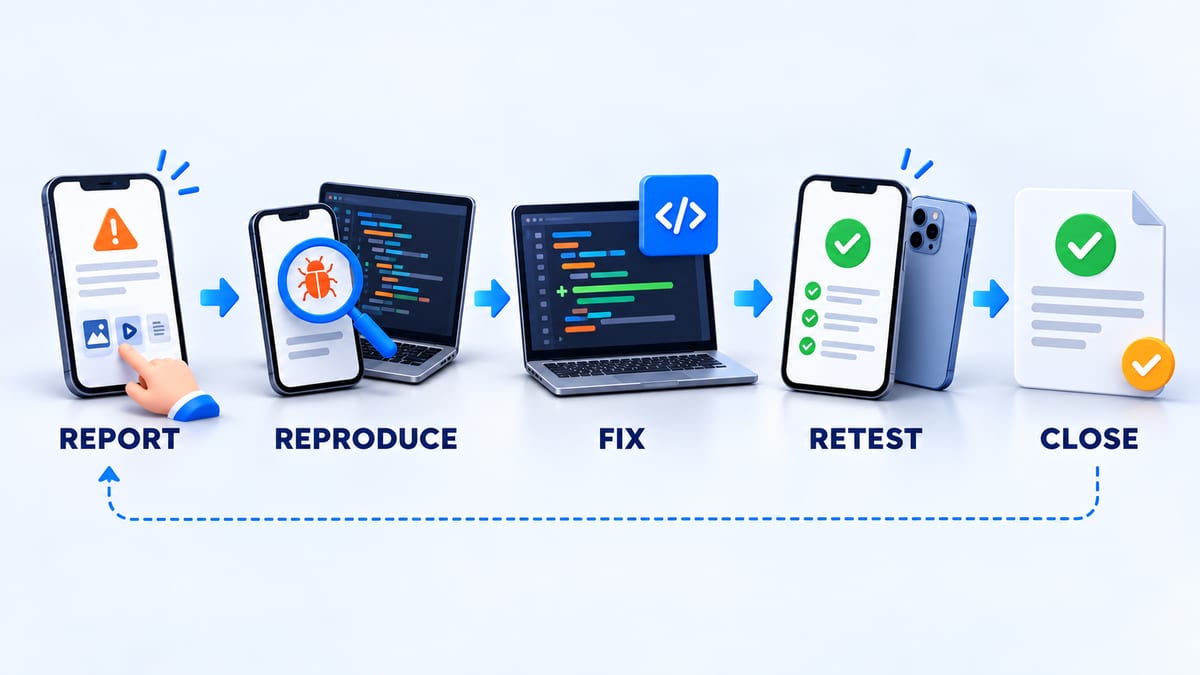
A healthy workflow moves from report to reproduction, fix, retest, and closure.
The triage owner first checks for duplicates, confirms the build and environment, and decides whether more information is needed. An accepted defect receives an owner and severity. Engineering reproduces it, records the root cause privately, and links the fix to a build.
Return the fixed issue to the original tester or the closest matching environment. Retest both the failing path and nearby behavior that could regress. Close the report only after the expected result is observed, or document why the issue is deferred or works as designed.
Good communication between testers and developers is part of software quality. Acknowledge useful findings, ask focused follow up questions, and tell the tester what to retest. Silence trains people to stop reporting details.
Avoid common bug reporting mistakes
- Combining unrelated issues in one report
- Using a generic title that cannot be searched
- Omitting the build, device, or operating system
- Writing steps from memory without reproducing them
- Mixing expected and actual results
- Claiming a root cause without evidence
- Attaching a long recording with no timestamp or trigger
- Sharing production data or credentials
- Marking every issue as the highest severity
- Closing after a code change without retesting the original path
Frequently asked questions
How long should a bug report be?
Use the shortest report that lets another person reproduce and understand the impact. A simple copy error may need a few lines and a screenshot. An intermittent crash may require detailed environment data, timestamps, logs, and a recording.
What if I cannot reproduce the bug?
Report it when the impact is important, but state clearly that it happened once. Preserve the exact build, environment, timestamp, account state, last actions, and available evidence. Do not invent reproduction steps.
Should I include screenshots or videos?
Use screenshots for static UI and videos for motion, gestures, timing, and navigation. Redact private information and keep the evidence focused on the failure.
What is the difference between a bug and feedback?
A bug is behavior that differs from an expected result. Feedback can describe confusion, preference, or a product opportunity even when the implementation matches the design. Both are useful, but they follow different triage paths.
Who decides whether a bug blocks release?
The release owner makes the final decision with product, engineering, quality, security, and support input. The tester contributes evidence about impact, frequency, affected environments, and workarounds.
Turn findings into better releases
Create a BetaRoast testing round with clear missions and evidence requirements. Structured findings help developers reproduce problems faster and help testers see their reports move from discovery to retest and closure.
A good mobile app bug report reduces uncertainty. Give the issue one observable title, identify the exact build and environment, describe the smallest reliable steps to reproduce it, and separate the expected result from the actual result. Add frequency, user impact, a timestamp, and evidence that is useful and safe to share. Treat severity as technical impact and let the product owner decide priority. Developers should combine tester reports with crash data, logs, and analytics, then return the fix to the original environment for retesting. BetaRoast gives testers and developers a shared workflow for missions, structured findings, evidence, discussion, and closure.