
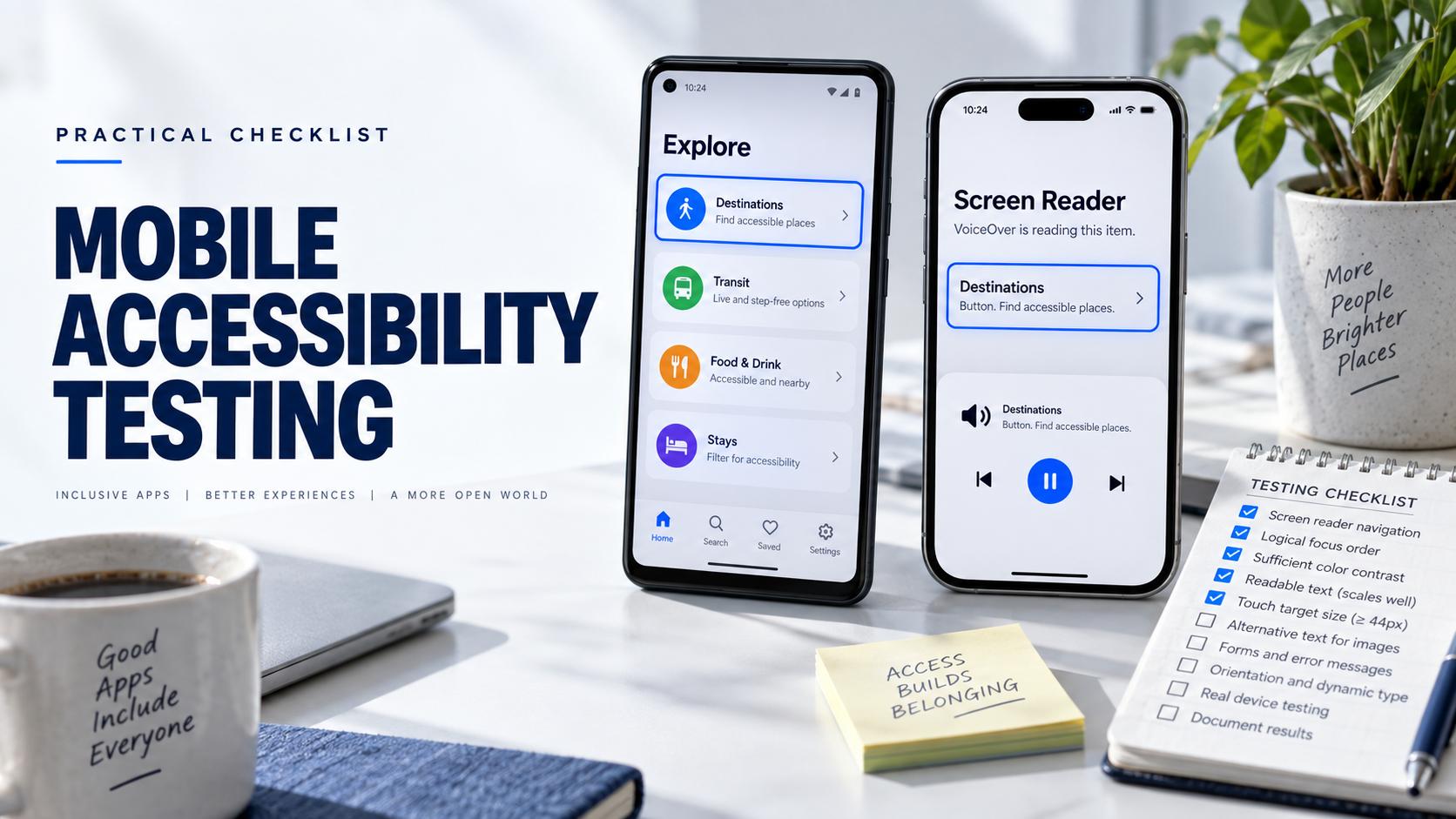
An accessibility audit can flag a missing label. A person using the app can tell you whether the task is actually possible.
A mobile app accessibility testing checklist is useful only when it helps someone complete a real task. Missing labels, clipped text, small targets, and confusing focus order are defects because they change what a person can understand or do. A passing automated scan cannot prove that an onboarding, checkout, or recovery journey works with assistive technology.
This guide gives Android and iOS developers a practical test matrix, hands on checks, a reporting template, and a release decision process. It pairs platform tooling with people who use assistive features in daily life.
Define the journeys and success criteria first
Choose the journeys that matter most to the product. A first pass might include account creation, the core task, settings, payment or confirmation, error recovery, and contacting support. Include an empty state and a permission denied state when the app uses them.
For each journey, write the expected outcome in user language. For example, a tester can find an order, change its delivery preference, and confirm the result without needing sight. That is a better goal than checking whether every icon has a label.
Decide which device models, OS versions, languages, and assistive settings you support. A small, intentional matrix is easier to run and review than an unassigned list of every possible combination.
W3C's WCAG2ICT guidance explains how WCAG 2 criteria can inform non web software. It is guidance for interpreting criteria, not a substitute for testing the native app in its platform environment. Use the requirements relevant to your product and jurisdiction with an accessibility specialist when a formal conformance decision is needed.
Build a small accessibility test matrix
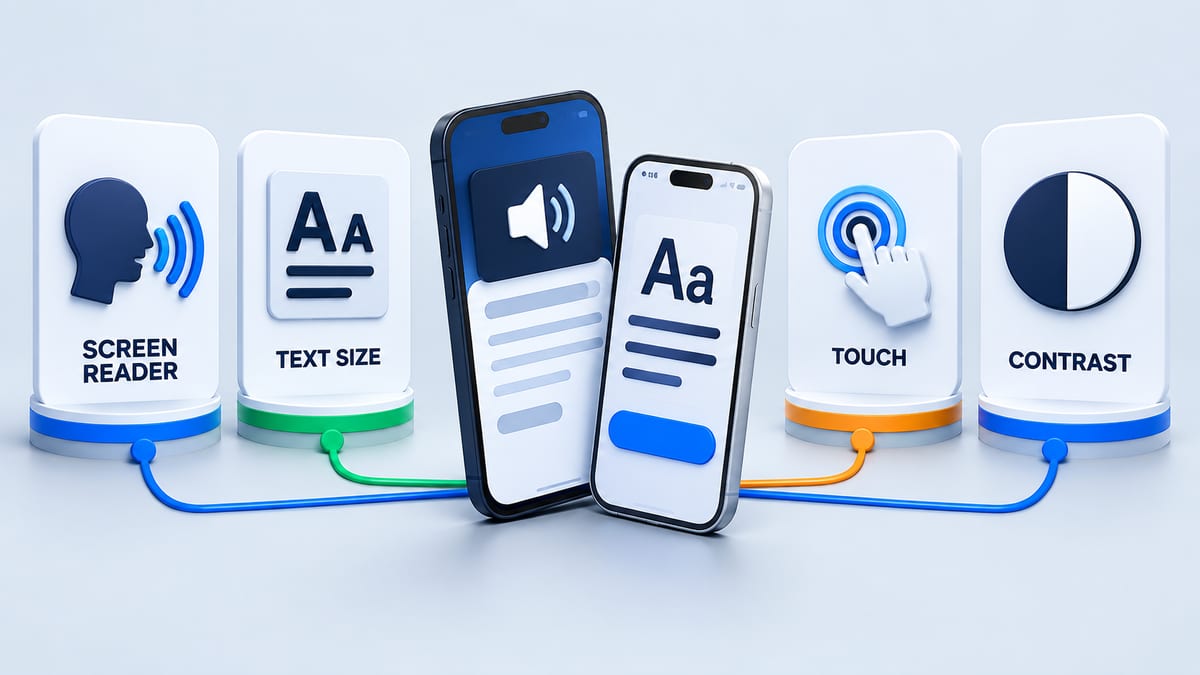
Start with the risk and audience, then distribute combinations across testers. Do not make one person cover every device and setting.
- Screen reader. TalkBack on Android and VoiceOver on iOS.
- Text size. Larger system text and display settings, including the app's most constrained screen.
- Input. Touch exploration, external keyboard, switch access or voice control where supported by your audience.
- Visual presentation. Contrast, dark appearance, orientation, and whether meaning depends on color alone.
- Motion and sound. Reduced motion, captions, and non audio alternatives when the app uses animation or audio.
Include a fresh install and a returning account. Test the same critical path after an error or interruption. A screen can look accessible while its recovery dialog traps focus or hides the next action.
Android's accessibility testing guidance recommends manual testing, analysis tools, automated checks, and user testing together. Apple's accessibility testing guidance similarly calls for testing with assistive technologies and system settings.
Test the full journey with TalkBack and VoiceOver
Turn on the platform screen reader and complete the journey without relying on visual memory. Move through elements in order, activate controls, enter data, make an error, recover, and finish the task.
Listen for a concise name, role, state, and useful action. A control announced only as Button or Image is usually not enough. Check whether a selected tab announces its state, whether form fields have meaningful labels, and whether a loading or error message is discoverable when it appears.
Focus should follow the user's task. After opening a modal, the next item should make sense. After dismissing it, focus should return to a useful place. Verify that a custom gesture has an alternative route when the gesture is difficult or unavailable through assistive input.
Android developers can inspect the semantics exposed to TalkBack and use the Compose accessibility checks to catch some regressions. On iOS, Apple's Accessibility Inspector audit can flag descriptions, hit regions, contrast, and other common issues. Neither tool replaces a complete real device journey.
Increase text and inspect every state
Raise the device's text setting beyond the default and revisit the same task. Check long names, translated strings, validation messages, navigation labels, and buttons with two or more lines of text. Look for truncation, overlap, hidden actions, and layouts that scroll in a way that blocks completion.
On iOS, Apple's audit can check Dynamic Type support and clipped text. A clean audit result is a starting signal; Apple explicitly says it does not guarantee an app is fully accessible. Manual testing with VoiceOver and other assistive apps is still needed.
On Android, check font and display scaling on the supported devices. Responsive layout decisions need to preserve the information and controls necessary to finish the task. A small label that stays visible but is impossible to read at the selected setting is a product failure.
Record the text setting and screen size when reporting a defect. A developer cannot reproduce clipping from the phrase large text is broken alone.
Check touch, focus, contrast, and error recovery
Try the app without precise taps. Controls should have usable touch areas and enough separation to avoid accidental activation. If a gesture requires a long press, drag, or path, verify another way to perform the same action when the platform and task permit it.
Use a real device to inspect focus visibility and order. A screen reader's focus outline, keyboard focus, and the visual tap target can expose different problems. Test controls near screen edges, sheets, and fixed bottom actions.
Check readable contrast in light and dark appearance, but also check meaning. A green success state needs a label, icon, or other cue so people who cannot distinguish its color still understand the result. Error text should describe the problem and recovery action.
Run the same form with an empty required field, an invalid value, and a server failure. The tester should discover the error, understand which field or action needs attention, and continue without losing all entered data.
Use audits to find defects early
Automated tools are valuable for repeated checks. Android's Accessibility Scanner can suggest improvements to labels, click targets, contrast, and related UI properties. Compose tests can inspect semantics and run automated accessibility checks. iOS Accessibility Inspector can audit element descriptions, hit regions, contrast, text clipping, and Dynamic Type.
Add these checks to development and UI test workflows so common regressions are caught before an external beta. Then use the beta to ask whether a real person can finish the task under conditions the team did not predict.
Do not turn a scanner's clean report into a broad accessibility claim. The platform documentation itself describes the limits of automated audits. Record which screens, builds, settings, devices, and tasks were actually tested.
Invite people who use assistive features
Recruit testers whose experience matches the journey and feature being evaluated. A developer turning on VoiceOver for ten minutes can find problems, but a daily user may reveal a much more subtle barrier in navigation, wording, timing, or recovery.
Give each person a specific task and let them use their familiar device and assistive settings. Ask how they usually perform the action, what slowed them down, whether they found a workaround, and how confident they were about the result. Do not ask them to disclose a diagnosis when the device setup and task experience are enough for the test.
Offer a private feedback route for sensitive screens and allow redacted screenshots or recordings. The guide to finding beta testers explains recruiting and screening for a useful round.
Turn an accessibility barrier into a retestable finding
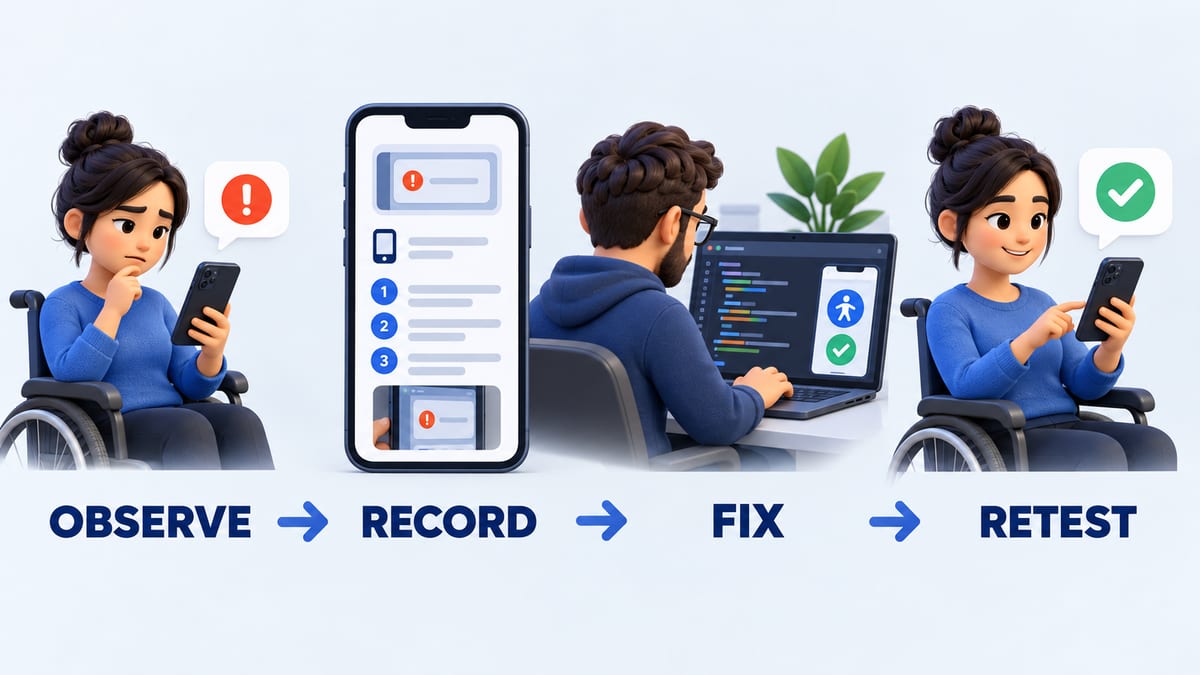
A good report identifies the barrier and preserves the setup that exposed it. Use this compact template.
- Name the journey and the point where progress stopped.
- Record app build, device, OS, language, and assistive settings.
- List the actions from a known starting state.
- State the expected user outcome.
- Describe what happened and whether the tester could recover.
- Attach safe evidence and note any workaround.
For example, a report might say that VoiceOver focus skips the Continue button after a validation error on an iPhone using a specific build. The person can hear the error but cannot reach the correction path. That is more actionable than saying the form is inaccessible.
Prioritize barriers that prevent the core task, hide critical information, cause an unsafe action, or affect many users. Send the fix back to the same assistive setup for retest. The bug report guide gives a fuller template for engineering handoff.
Mobile app accessibility testing checklist
- Name the core journey and its expected outcome.
- Assign Android and iOS devices and supported OS versions.
- Run the journey with TalkBack or VoiceOver.
- Check element names, roles, states, and focus order.
- Activate every important action without relying on sight.
- Increase system text and inspect truncation or overlap.
- Check touch areas and alternatives to difficult gestures.
- Verify contrast and meaning without color alone.
- Trigger form errors and complete the recovery path.
- Check motion, captions, and audio alternatives where relevant.
- Run platform audits and save the results with build context.
- Ask people with relevant lived experience to complete the task.
- Report blockers with device, setting, steps, and safe evidence.
- Retest fixes using the original setup before closing them.
Frequently asked questions
Is a passing accessibility scanner result enough?
No. Automated checks identify common patterns on the screens they inspect. Android and Apple both recommend manual and user testing because a scan cannot verify every journey, custom interaction, or real user's experience.
What is the first screen reader test to run?
Start with the app's most important task. Use TalkBack or VoiceOver from a known start state and complete the task without looking at the screen. Note where labels, focus, controls, or feedback make progress unclear.
Does WCAG 2.2 apply to native mobile apps?
WCAG is written for web content. W3C's WCAG2ICT document explains how many criteria can be interpreted for non web software, including native apps. The relevant standard or legal obligation depends on context, so use the mapping as technical guidance and validate formal requirements separately.
How do I report a screen reader bug?
Record the build, device, OS, screen reader, settings, exact steps, expected announcement or action, actual result, and whether the user can finish the task. Add a short, safe recording when it clarifies focus order or timing.
How often should accessibility be tested?
Run automated checks during development and repeat manual checks when a core flow, navigation, component, or design system changes. Include representative users before important releases and retest fixes in the setting where the issue appeared.
Plan a more useful accessibility beta
Create a BetaRoast testing round that names the app journey, supported devices, assistive settings, safe evidence format, and feedback deadline. Give testers a focused task and a clear route from finding to retest.
Mobile app accessibility testing is a release workflow, not a single scan. Start with the journeys that matter, then test them on real Android and iOS devices using TalkBack, VoiceOver, larger text, alternative input, and reduced motion where relevant. Use platform audits to find common defects, but follow them with manual and user testing. Record the exact device, build, setting, step, expected result, actual barrier, and impact. Prioritize journeys that become impossible or unsafe, fix the underlying semantics or interaction, and retest with the original assistive setup. BetaRoast helps a team recruit relevant testers, assign focused missions, and collect evidence that turns accessibility findings into release decisions.