

A screenshot comparison is trustworthy only when the captured state is reproducible and the approved baseline deserves to remain the source of truth.
Visual regression testing compares rendered screenshots against approved reference images to detect changes in a user interface. It can expose clipped text, shifted controls, missing icons, and unintended styling that a functional test may miss. Its value depends on reproducible capture and thoughtful review, rather than the number of screenshots collected.
A passing comparison means the captured image met a configured comparison policy. It does not establish that the UI is usable or correct. This guide focuses on baseline governance, rendering controls, and release evidence. Every scenario and numerical example below is explicitly hypothetical; none represents benchmark results. The illustrations are conceptual artwork, not product captures or test evidence.
Define the visual regression testing baseline as a product contract
Choose what the reference image should protect
Treat the baseline source of truth as an approved representation of a specific state. Record the component or page, fixture, viewport, theme, and expected content. A screenshot created during a broken build can preserve that defect indefinitely if nobody reviews the first reference.
In a hypothetical billing screen, protect the amount, explanatory text, and confirmation control together. A small alignment change may be harmless, while a clipped currency symbol can change interpretation. State the intended behavior before choosing a tolerance so reviewers know which visual change matters.
Keep functional outcomes separately asserted. Use the existing Playwright end to end testing guide for journey correctness; this visual test protects presentation after the intended state has been reached.
Build a repeatable visual regression testing workflow
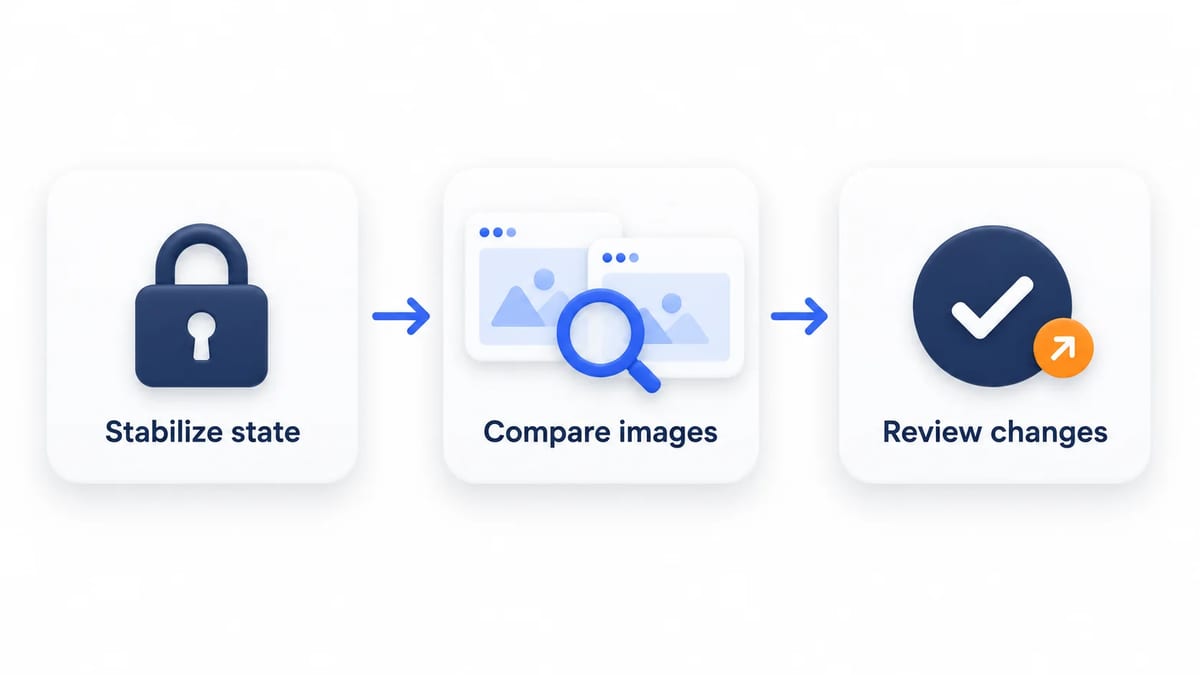
Stabilize state before comparing images
Establish the fixture, navigate to the intended view, assert meaningful readiness, capture the image, and compare it with the approved baseline. Preserve the comparison evidence for review. Playwright visual comparisons explains why references and subsequent captures should use the same rendering environment.
Playwright's screenshot assertion API waits until two consecutive screenshots produce the same result before comparing the last image with the expectation. A stable loading placeholder can satisfy that condition. Assert the expected content and completed loading state first.
Verify readiness through the UI contract
In a hypothetical account summary, wait for the seeded account name and balance to appear and for the loading indicator to disappear. Network silence does not establish those outcomes. The page readiness reference discourages using networkidle for testing and recommends web assertions instead.
Establish font and image readiness
Pin font files and verify that the intended fonts actually load. MDN's document fonts reference describes document.fonts.ready for waiting on used fonts. That promise alone does not prove that a failed custom font avoided fallback. Check font availability and required image loading or decoding before capture; a consistently missing asset is still wrong.
Keep captures independent of prior tests
Reset selected tabs, scrolling, hover, focus, and stored preferences deliberately. In a hypothetical dialog comparison, open the dialog through an explicit setup action rather than relying on an earlier test. Keep the cursor away from incidental hover targets unless hover styling is the intended subject.
Pin the rendering environment for Playwright screenshots
Control browser versions fonts and display settings
Record the exact OS image, browser build, Playwright package version, font assets, viewport, device pixel ratio, and screenshot scale. Include locale, timezone, color scheme, and fixture revision. Store this capture contract with the baseline so a rendering upgrade can be distinguished from an application change.
Playwright's Docker documentation recommends pinning the image version and matching it to the project's Playwright version. The image supplies browsers and system dependencies, while the Playwright package is installed separately. Generate and compare references in the same controlled environment; a developer's laptop should not silently replace CI baselines.
The emulation guide documents viewport, device scale, locale, timezone, and color scheme controls. Specify each intended value rather than inheriting machine defaults. Browser emulation does not establish real device rendering equivalence. Review environment upgrades as their own baseline migration, keeping application changes separate where practical.
Bound dynamic UI data motion and screenshot exclusions
Prefer stable fixtures over broad masks
Seed synthetic records with deterministic ordering, amounts, labels, and timestamps. Playwright's API mocking guide describes intercepting requests and supplying controlled responses. Use those fixtures for presentation coverage while maintaining separate integration checks for the real service contract.
Time control needs an explicit scope. The Playwright clock guide explains that setFixedTime fixes Date values while timers continue running. It does not freeze server time or random data. In a hypothetical expiry banner, coordinate the backend fixture and browser clock rather than masking the expiry message.
Mask only bounded unstable areas whose contents are irrelevant to the visual contract. Document the reason and owner for each exclusion. Never mask essential prices, errors, consent text, or primary actions merely because they change. A mask can conceal content defects and still change dimensions when the underlying layout moves.
Make motion and screenshot styling explicit
For screenshot capture with animations disabled, Playwright fast forwards finite animations and transitions to completion, potentially firing transitionend; infinite animations are canceled to their initial state and resumed afterward. See the screenshot capture options. This is a capture policy, not proof that motion works for users. JavaScript timers, canvas drawing, and media can require separate controls.
The screenshot assertion options document caret hiding and stylePath, added in version 1.41. The stylesheet reaches shadow roots and inner frames. Review every override because it changes what is tested. Hiding a caret should not remove a focus outline; test reduced motion behavior separately from disabling animation during capture.
Interpret visual diffs with meaningful pixel tolerances
Separate pixel counts ratios and color thresholds
maxDiffPixels limits the number of differing pixels. maxDiffPixelRatio limits their fraction of the total image, between zero and one. threshold determines which pixel color differences count. These controls answer different questions, as the locator screenshot assertion reference explains.
In a hypothetical image containing one million pixels, a ratio of 0.001 permits one thousand differing pixels. That is arithmetic, not a quality recommendation. A small missing warning could fit within the allowance, while harmless text rendering noise could exceed it. A full page image also increases the denominator, potentially diluting a localized defect.
The pixelmatch documentation distinguishes per pixel color sensitivity from the share of an image allowed to differ. Check the comparator version actually bundled with your tool before borrowing defaults from another package. Compare expected, actual, and diff images together; the highlighted overlay alone can exaggerate subtle noise or obscure the original content.
Calibrate tolerances after stabilizing inputs. In a hypothetical validation exercise, deliberately remove an essential icon or shift a primary control in a disposable branch. Confirm that the configured comparison rejects it. A tolerance that accepts a known relevant defect should not become a release gate simply because routine runs pass.
Budget visual test coverage across components and responsive UI
Select states that expose different layout risks
Use component captures for isolated controls and page captures for composition, navigation, and surrounding context. Select normal, empty, validation error, disabled, and expanded states according to risk. Component references alone cannot reveal a parent container clipping a perfectly rendered control.
For responsive design, choose representative screen sizes and widths around important layout transitions. Include long content, wrapping, and dark mode where supported. In a hypothetical navigation panel, compare immediately below and above the width where links collapse, then verify the open mobile menu. One desktop image cannot establish responsive coverage.
Avoid multiplying every state by every browser, theme, locale, and width without a purpose. Assign a fast blocking set to important changes and a broader scheduled set to secondary combinations. Review runtime, artifact volume, and reviewer workload. Remove redundant captures when they provide no distinct failure signal, and add targeted coverage when an escaped defect reveals a missing state.
Automate visual regression testing with accountable baseline review
Diagnose differences before updating references
Classify a failure as an intended design change, application defect, unstable capture, or environment drift. Check build and fixture revisions before changing expected images. Repeated failures across unrelated pages may indicate a font or browser change rather than simultaneous product regressions.
For an intended change, show the previous baseline, proposed image, and visual difference in the pull request. Explain the affected state and obtain approval from the responsible UI owner. Require independent review for sensitive content or broadly shared components. Generating new references is a mechanical step; accepting them is a product decision.
Never automatically update baselines on a failing CI run. Limit an approved update to the reviewed states, then compare again using the ordinary gate. If feature exposure changes the intended interface, use the feature flag testing guide to define which flag state each reference represents.
Preserve useful CI artifacts with privacy controls
Retain expected, actual, and diff images with the test identity, capture settings, and build revision. Ensure evidence survives comparison failure so reviewers can diagnose the result. GitHub's workflow artifact documentation describes uploading artifacts and setting retention within repository or organization limits.
Use synthetic accounts and remove private content before capture. Screenshot masks do not sanitize traces, logs, or other attachments. Restrict artifact access and retention, inspect what reports contain, and keep credentials out of uploaded files. Sensitive references also need protection if stored in version control.
Combine visual comparisons with accessibility and human feedback
Verify meaning beyond matching pixels
A matching image cannot establish accessible names, keyboard order, authorization, or successful persistence. Pair screenshots with semantic assertions and functional checks. Playwright's accessibility testing guidance recommends combining automation, manual assessments, and inclusive user testing because automated checks detect only part of the problem.
Capture focused states when protecting keyboard visibility. W3C's Focus Visible guidance explains why users need to identify the focused control. Verify keyboard interaction independently; an attractive outline captured on the wrong element does not establish usable navigation.
Create a BetaRoast feedback round for people to assess the visible experience with safe accounts and a concrete mission. In a hypothetical checkout review, ask whether the total, warning, and next action are understandable. BetaRoast supports human feedback on visible UI; engineers remain responsible for screenshot automation, baseline approvals, and correctness checks.
Frequently asked questions
What does visual regression testing detect?
It detects rendered differences from an approved baseline within configured tolerances. Its coverage depends on the captured states and areas. Pair it with assertions for behavior and meaning that pixels cannot establish.
Why do Playwright screenshots differ between local and CI runs?
OS rendering, browser builds, fonts, display settings, and uncontrolled data can differ. Compare the capture contracts first and regenerate approved references in the controlled environment when an intentional environment migration requires it.
What is a good visual difference threshold?
There is no universal value. Stabilize rendering, inspect noise, and verify that meaningful hypothetical defects fail. Keep differing pixel counts or ratios distinct from per pixel color sensitivity, and document the risk accepted by each tolerance.
When should a visual baseline be updated?
Update it after reviewers approve an intentional interface or rendering environment change. Investigate unexpected differences first, scope the update to reviewed states, and rerun the normal comparison before accepting the new reference.
Define the visual contract, stabilize rendering inputs, compare bounded UI states, and inspect expected, actual, and difference images before approving a baseline change. Keep semantic assertions, accessibility checks, and human feedback alongside image comparisons. BetaRoast supports feedback on the visible experience; baseline governance and engineering verification remain the team's responsibility.